![Embodied Labs Registered Logo 684x389 full white.png]](https://resource.embodiedlabs.com/hs-fs/hubfs/Embodied%20Labs%20Registered%20Logo%20684x389%20full%20white.png?height=50&name=Embodied%20Labs%20Registered%20Logo%20684x389%20full%20white.png)
If you need to adjust the volume levels for the audio in our VR experiences, there are a few different areas you can check and adjust.
1. Windows System Volume
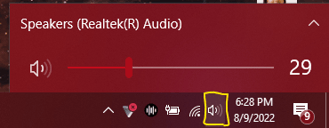
You can also change the volume using the Windows quick volume setting in the toolbar on the bottom-right of your screen by left-clicking the sound/speaker icon:
2. Microphone Volume
If you need to adjust the microphone volume for the experiences that have speaking parts, you can adjust the headset' built-in microphone volume. To change the volume level of the microphone:
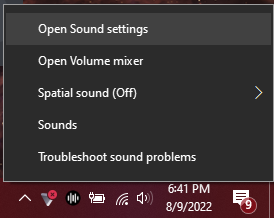
- Right-click the sound/speaker icon in the Windows toolbar of the bottom-right of your screen, and select Open Sound settings.
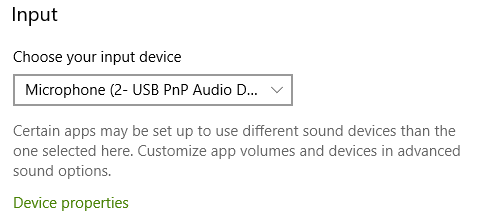
- Once settings are open, click on Device properties under Input.
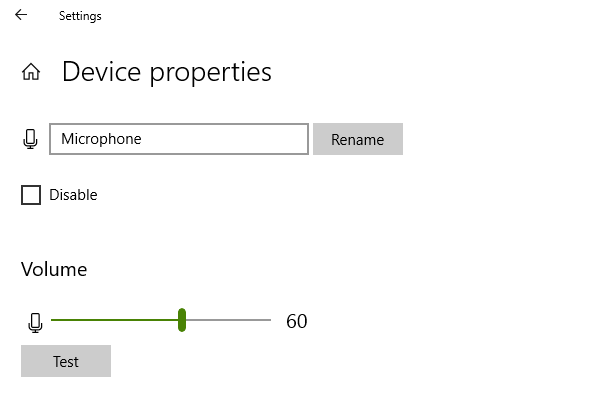
- Adjust the volume level for that microphone.