![Embodied Labs Registered Logo 684x389 full white.png]](https://resource.embodiedlabs.com/hs-fs/hubfs/Embodied%20Labs%20Registered%20Logo%20684x389%20full%20white.png?height=50&name=Embodied%20Labs%20Registered%20Logo%20684x389%20full%20white.png)
Starting a Group Session
- Launch Classroom and sign in with your administrator account.
- Connect all learner devices (VR headsets and/or laptops) to your Classroom session.
- Navigate to the Labs tab.
- Select the desired Lab and Module, then proceed through the Prepare Slides.
- When you reach the You May Start the Experience screen, select Start Experience for All Learners.
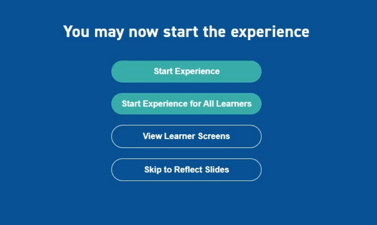
All connected learner devices will automatically be directed to the experience start screen:
- Laptop users: Start Experience
- VR users: Pinch to Start
Once the experience has been launched, you may continue navigating throughout Classroom as needed.
Managing an Active Session
While a Group Sync Session is active, a media control bar will appear at the bottom of the Classroom screen. From this control bar, facilitators can:
- Pause all learner experiences
- Stop the active group session

Ending a Group Session
To end a Group Sync Session and allow learners to independently browse and launch experiences:
- Select the Stop button in the media control bar.
- Close the media control bar.
Important: As long as the media control bar remains visible, the Group Sync Session is still active and learners will not be able to independently start other experiences.
Additional Information
- Facilitator Controls help learners begin experiences at approximately the same time, making it easier for groups to progress together. However, individual completion times may still vary based on learner pace or if a learner pauses their experience.
- During a Group Sync Session, all connected learners must participate in the same experience. Learners cannot independently switch to a different module or experience while the session is active.
- If a learner exits a synchronized experience early or completes it before the rest of the group, they will need to wait until the facilitator launches the next experience.