![Embodied Labs Registered Logo 684x389 full white.png]](https://resource.embodiedlabs.com/hs-fs/hubfs/Embodied%20Labs%20Registered%20Logo%20684x389%20full%20white.png?height=50&name=Embodied%20Labs%20Registered%20Logo%20684x389%20full%20white.png)
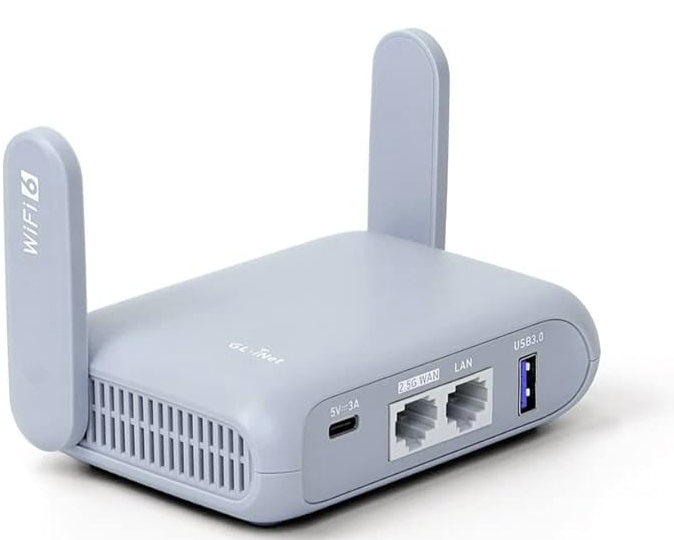
The router setup
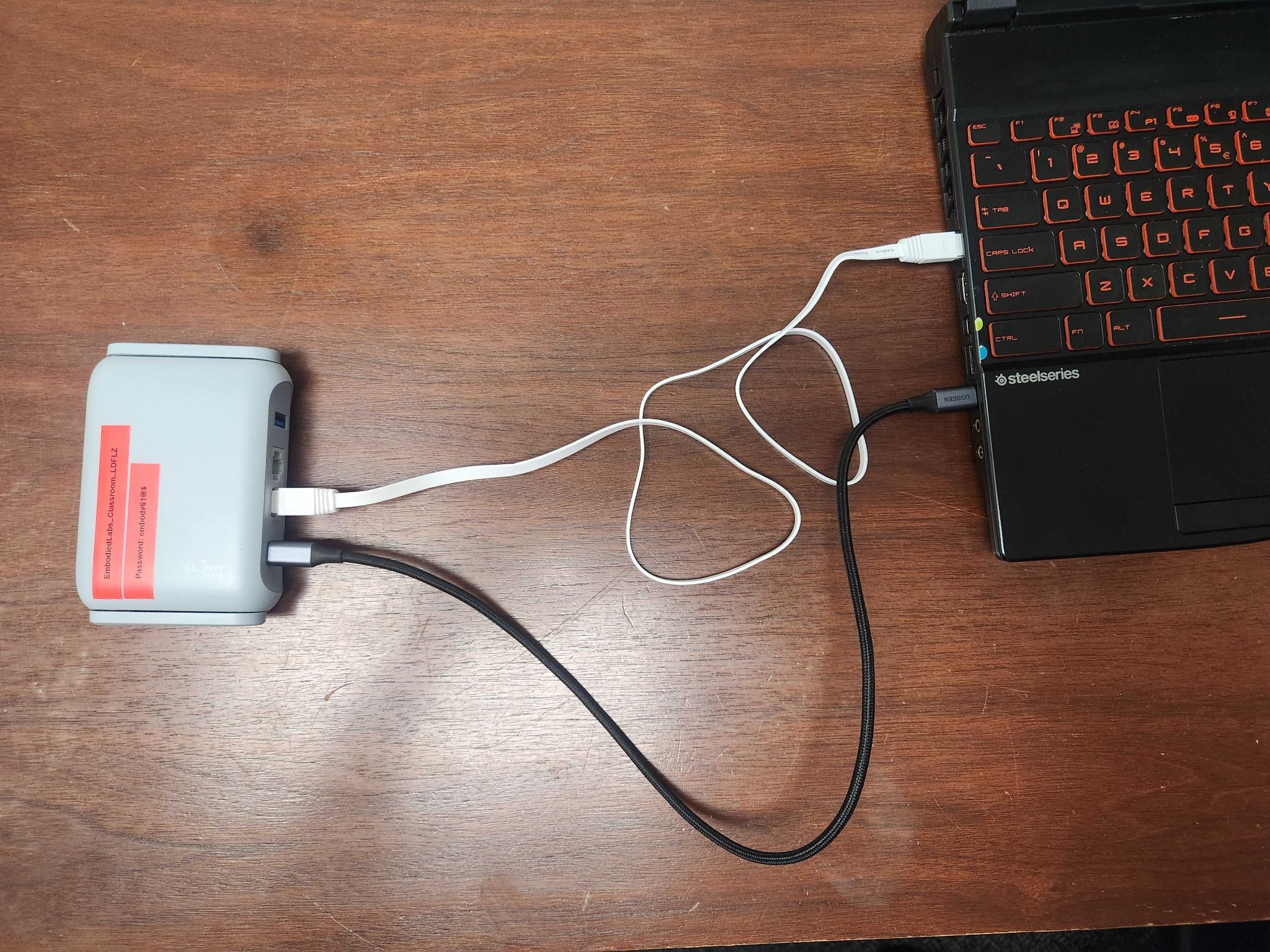
The router will be pre-programmed and labeled with the Classroom hotspot name, and only requires being plugged into the laptop to power on.
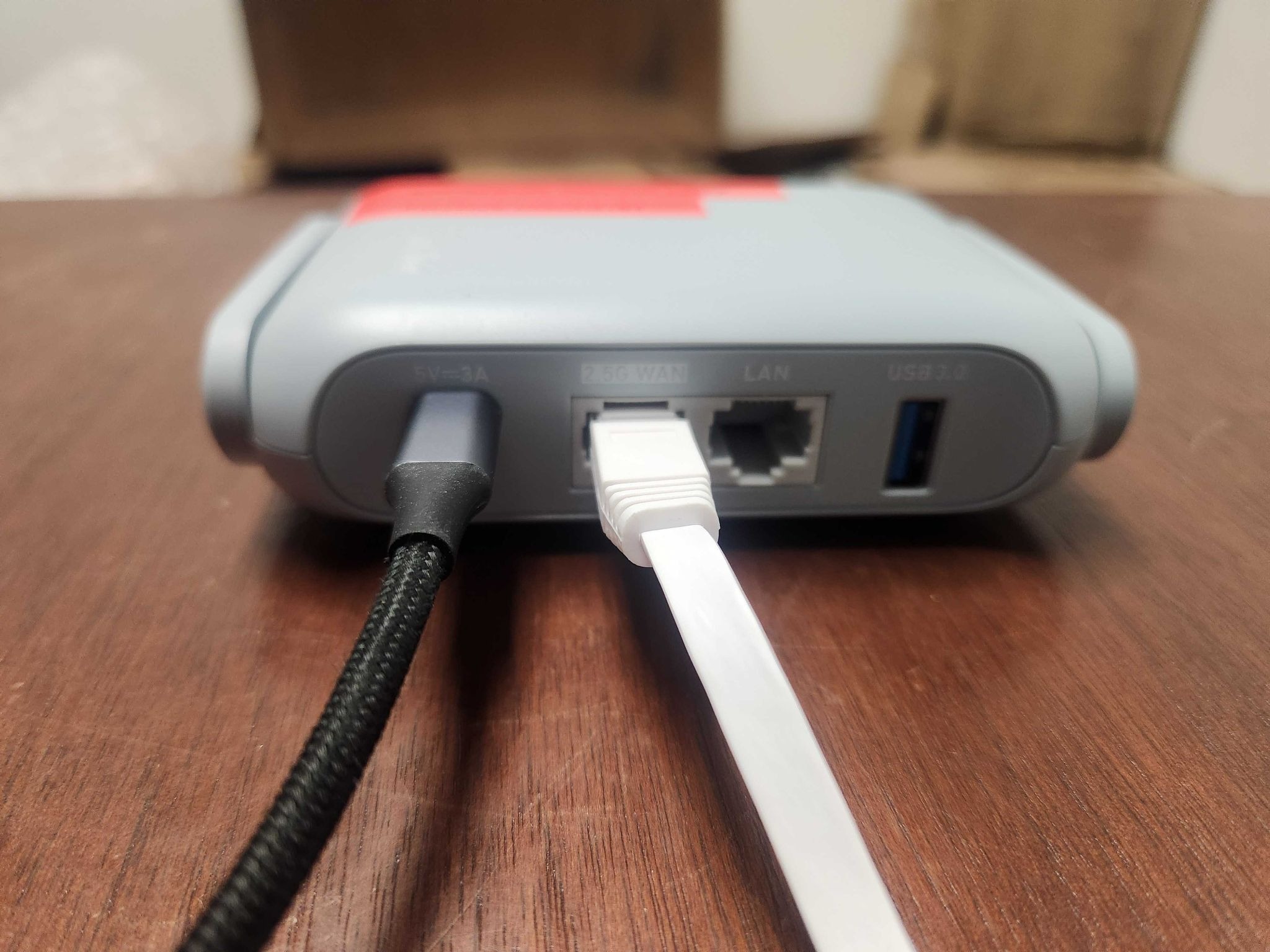
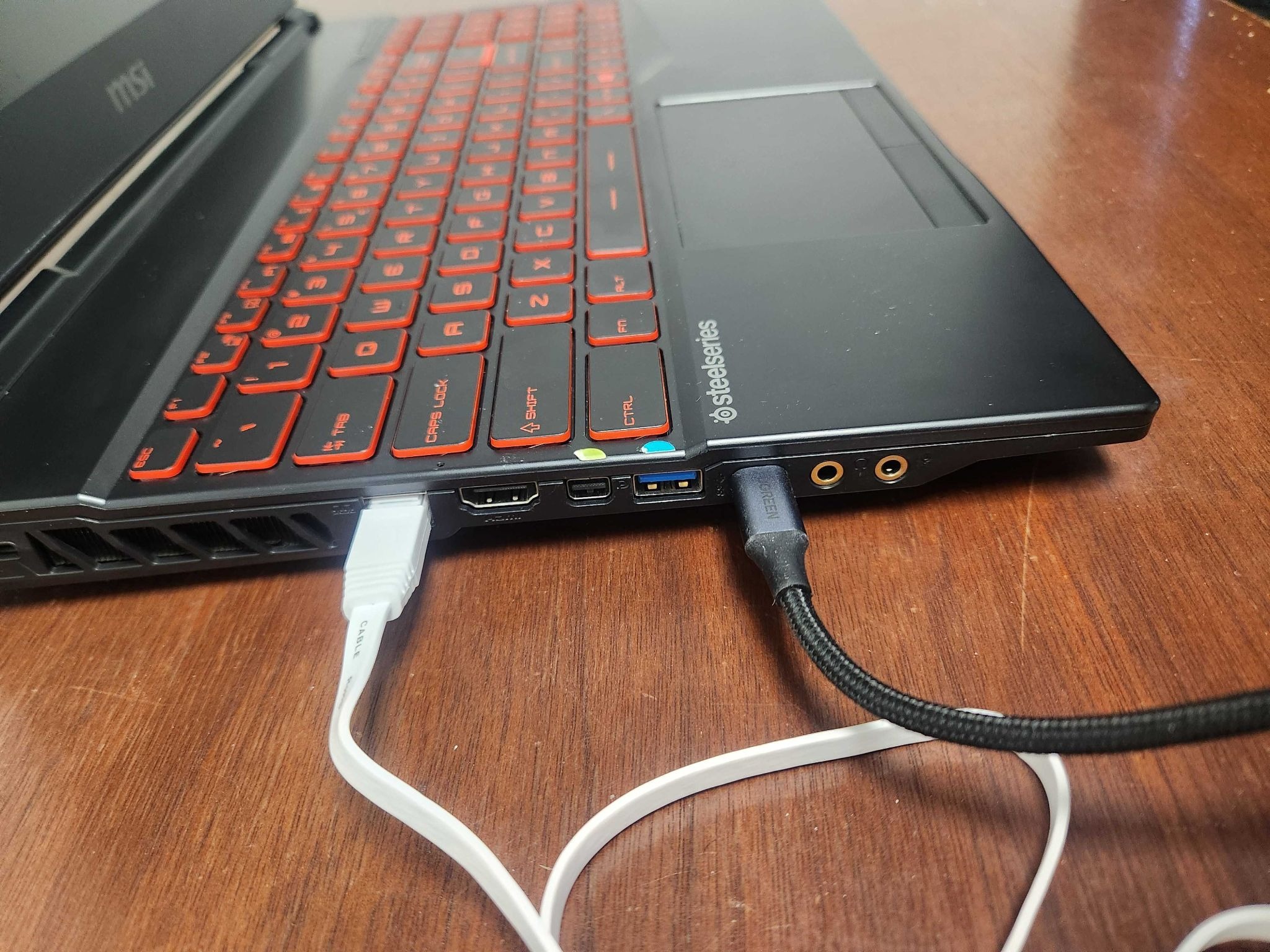
Connect the router to the PC via the provided USB C and Ethernet cable. The Ethernet will be connected to the port labeled WAN on the router.
|
|
|
|
Enabling the router in Classroom
- On your Facilitator laptop, open EL Classroom, and sign in.
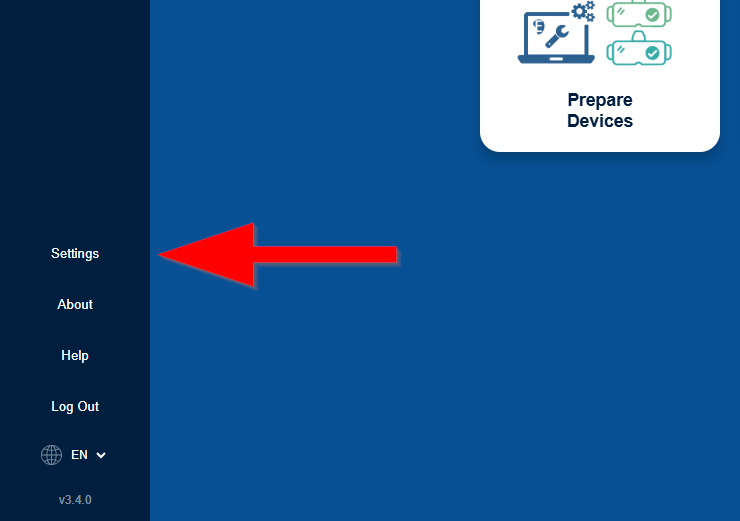
- Toward the bottom left of the home screen, select “Settings”.
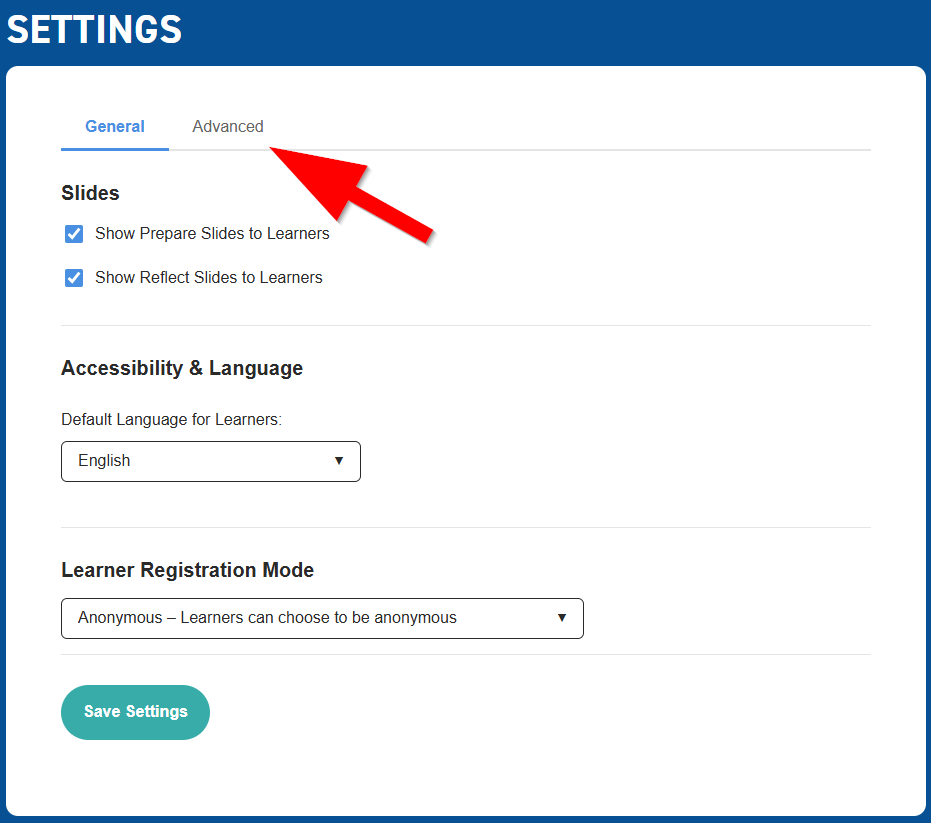
- On the settings menu, open the “Advanced” option toward the top.
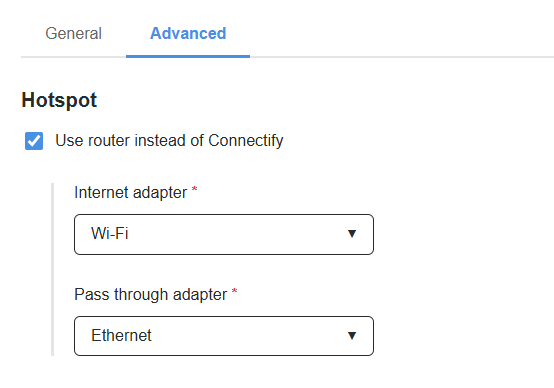
- On the advanced tab, enable the “Use router instead of Connectify”
- Set Internet Adapter to “Wi-Fi”
- Set Pass through adapter to “Ethernet”
- Select Save.
- This setting is permanent, no need to set it again!
- The VR headset will need to be reconnected to the hotspot, using the name and password labeled on the device.